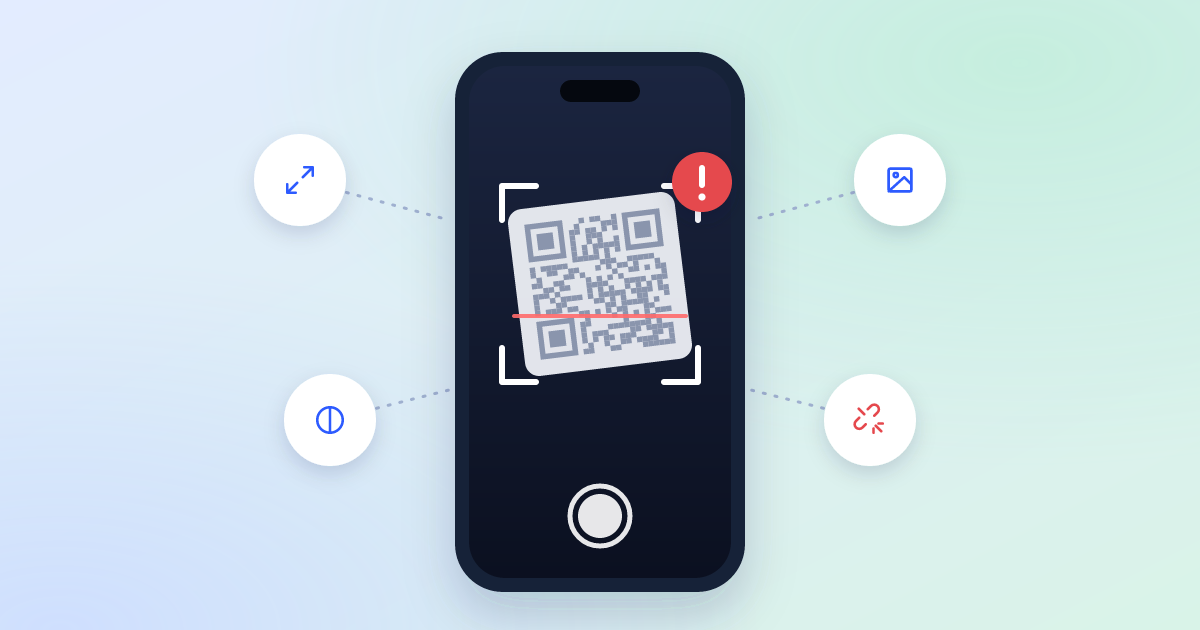
You printed a QR code, pointed a camera at it — and nothing happened. Most of the time the phone isn’t to blame: it’s one of the seven reasons below. Nearly all of them can be caught in advance if you know where to look.
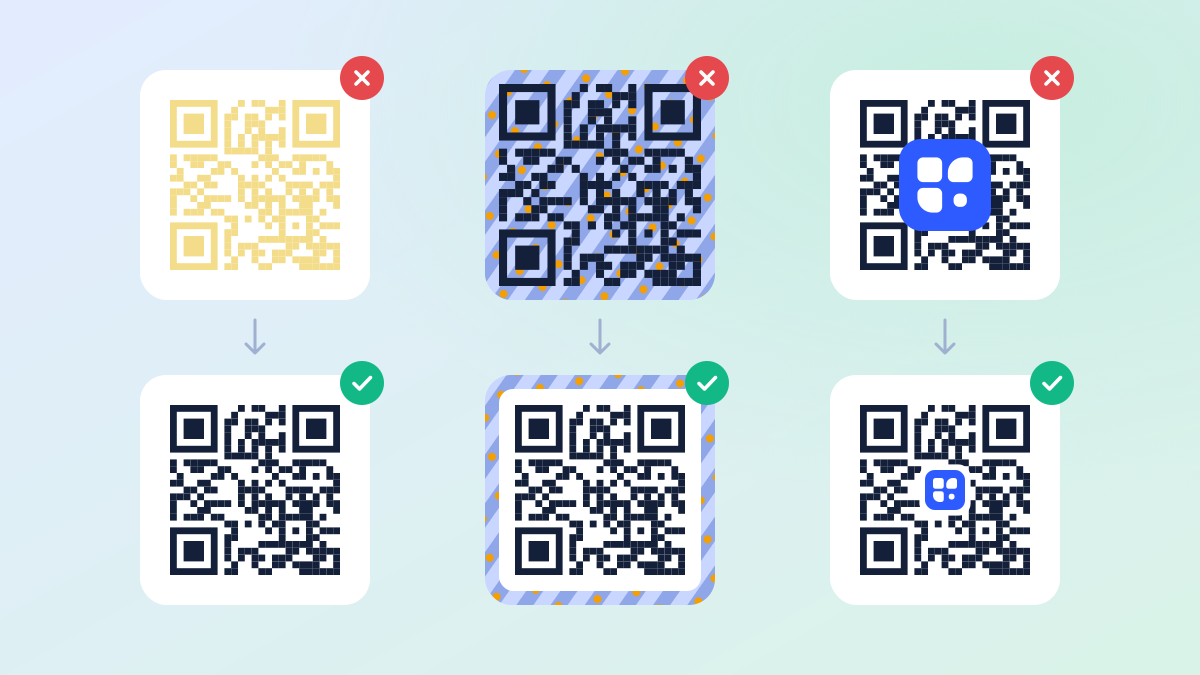
1. The code is too small
The camera has to tell every dot apart. A simple rule: the code should be at least a tenth as wide as the distance it will be scanned from. On a business card or packaging held in the hand, 2–3 cm (about an inch) is enough. A poster seen from three meters needs around 30 cm (a foot).
2. The code holds too much data
The longer the content, the more dots the code has, and the smaller they get at the same size. A long link full of UTM tags or a contact card with every detail turns the code into fine noise.
A dynamic code only ever holds a short link, so it has few dots and reads well even when small. Everything else lives behind that link.
3. Weak contrast
Scanners look for dark dots on a light background. Pale yellow on white, gray on gray, or light dots on a dark background will defeat many cameras.
- Make the dots clearly darker than the background.
- Don’t swap the colors around: a light code on a dark background doesn’t scan everywhere.
- A gradient is fine as long as its lightest part is still dark.
4. No empty margin around it
A code needs a light border around it, about four dots wide. That’s how the camera tells where the code begins. When text, the edge of a flyer or a busy picture runs right up to the code, the scanner gets lost.
5. The logo covers too much
A QR code has some slack built in: it still reads with part of its dots missing. A logo in the middle uses that slack, but there’s only so much of it.
- Keep the logo small — well under a third of the code.
- Never cover the three big squares in the corners: that’s how a phone finds the code.
- Clear the dots behind the logo instead of drawing it on top. The qrrr.io editor has a setting for exactly that.
6. Poor print or a poor surface
A blurry image stretched from a small PNG, glossy paper with glare, a code on the curve of a bottle or on fabric — all of these distort the dots.
Export the code as SVG for print: it stays sharp at any size. And put it on a flat, matte surface.
7. The link no longer works
Sometimes the code scans perfectly but opens an error: the page moved, the domain lapsed, there’s a typo in the address. For a static code that’s final — the only fix is a reprint. With a dynamic one you change the link in the workspace, and every code already printed leads to the new address.
Check before you print
- Scan the code with two or three different phones, including an older one.
- Print a test copy at full size and try it from the distance people will scan it from.
- Make sure the link opens and goes where it should.
- If the code is going into a print run, make it dynamic: a mistake found after printing can be fixed without reprinting.